
Your iPhone can alert you when someone calls your name—here is the setting most users may have missed
iPhone Name Recognition can notify you when someone calls a name you have recorded. Here is the exact setup route, how to add nicknames and why Apple says it is not an emergency tool.
- Sep 21, 2026,
- Updated Sep 21, 2026 5:00 PM IST
- 1/5
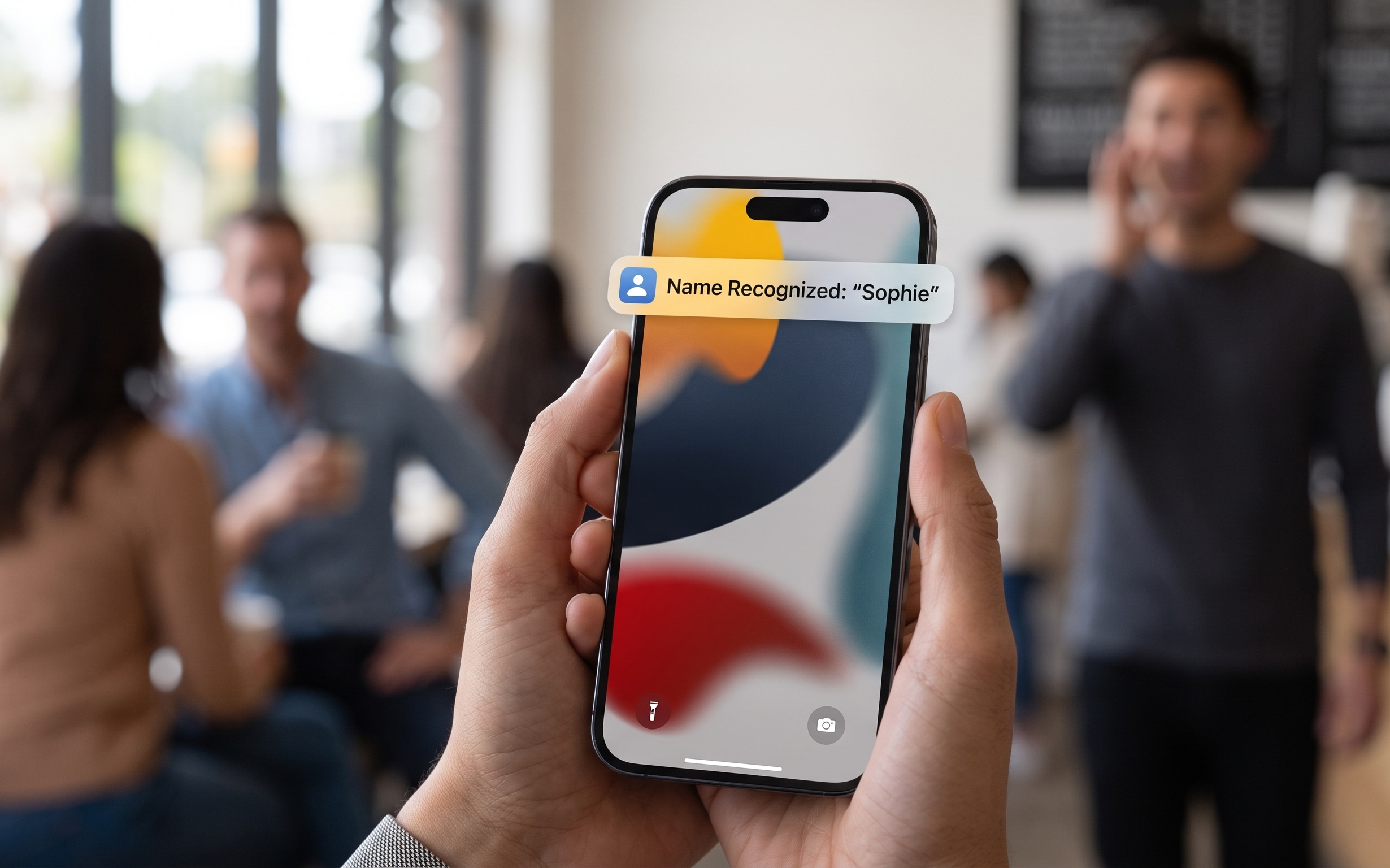
Apple’s Name Recognition accessibility feature can continuously listen for a chosen name and display a notification when it detects that name. During setup, you can record how you or another person says it, helping the iPhone learn the sound it should identify.
- 2/5
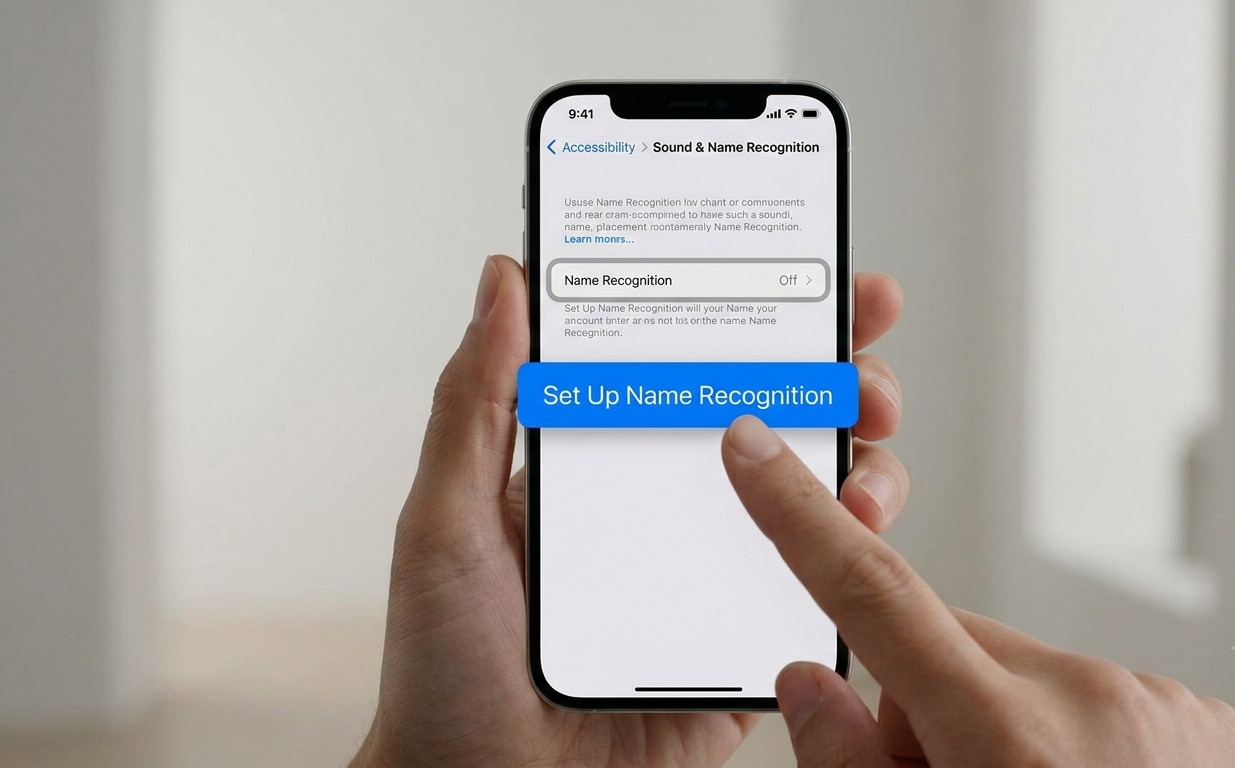
Open Settings, tap Accessibility, select Sound & Name Recognition, choose Name Recognition, and tap Set Up Name Recognition. Follow the prompts to record the name. Apple says the feature requires iOS 26 or later, so update iOS if the menu does not appear.
- 3/5
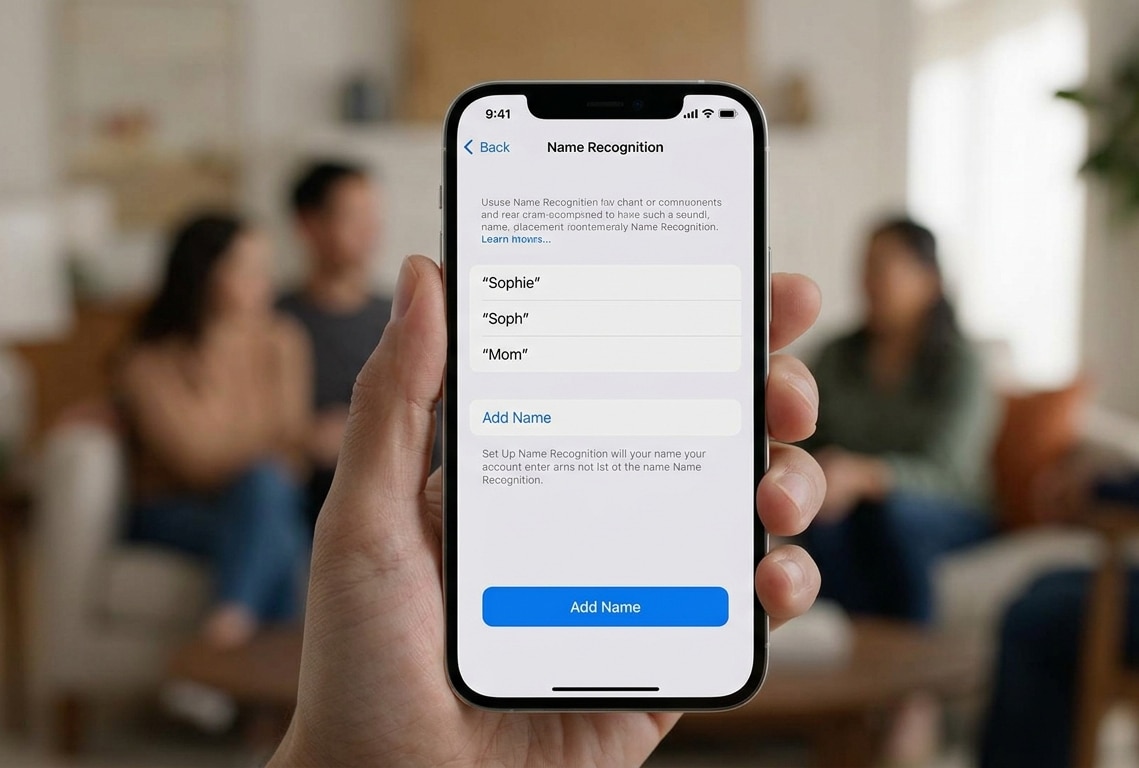
If family, friends and colleagues use different versions of your name, return to Name Recognition and tap Add Name. Each name can be trained separately. This is more useful than assuming one recording will reliably cover every nickname or pronunciation.
- 4/5
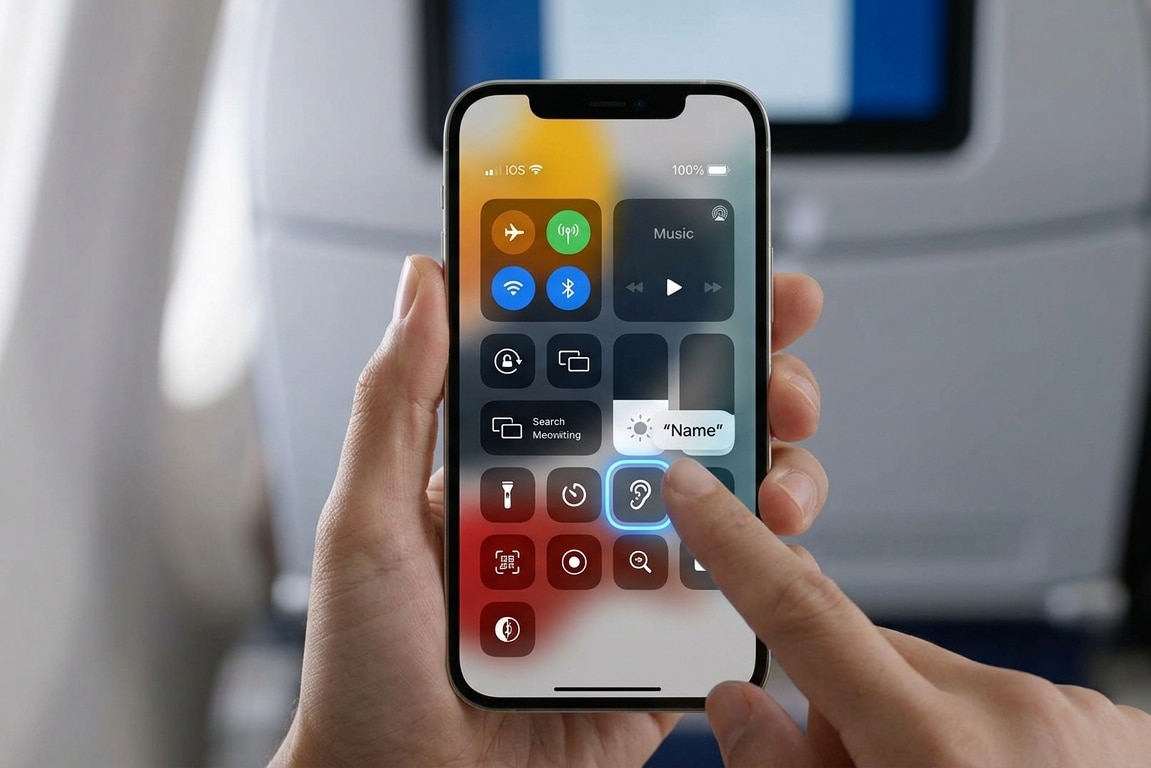
Apple lets users add Name Recognition to Control Center. Once the control is added, the listener can be enabled or disabled without returning through several Settings screens—useful when you only want the feature active at work, while travelling or when wearing headphones.
- 5/5
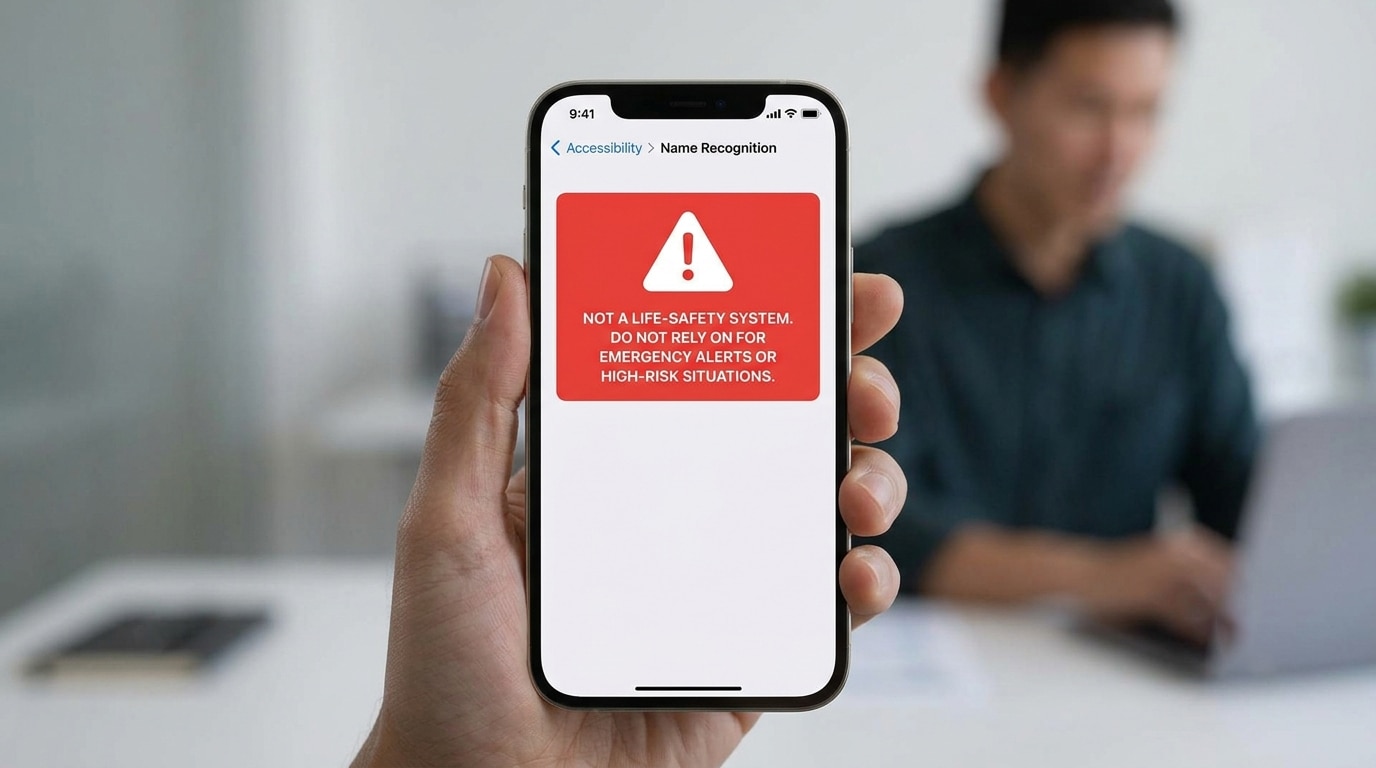
Apple says Name Recognition supports only selected languages and explicitly warns against relying on it where a missed alert could cause harm or injury, or in high-risk and emergency situations. Recognition can fail because of noise, distance, pronunciation or device placement.