
Don’t buy a kids’ phone: Repurpose your old iPhone with this Apple setting
An unused iPhone can become a more controlled phone for your child with Apple's Assistive Access, keeping calls, messages, Maps and tracking while limiting unwanted internet access.
- Aug 20, 2026,
- Updated Aug 20, 2026 7:05 AM IST
Giving a child their first phone can be a difficult balance. You may want them to call you, send messages and use maps when they are out alone, but unrestricted access to the internet and social media can be a concern.
Buying a traditional dumb phone solves part of that problem, but it can also remove useful features such as navigation and location tracking. There is, however, a way to repurpose an old iPhone without paying for another app or buying a new device.
Assistive Access can simplify an iPhone
The feature is called Assistive Access, introduced with iOS 17 for people with cognitive disabilities. It creates a simpler interface with large app tiles and fewer options.
Must Read: Slow internet at home? 5 ways to boost your Wi-Fi speed and connection
To set it up, go to Settings > Accessibility > Assistive Access. You can choose a grid or row layout and select only the apps you want your child to use.
You can leave Safari, Chrome and other browsers out. If your child receives a web link through Messages, it remains plain text rather than opening a browser, giving you tighter control over internet access.
Choose what your child can use
Assistive Access lets you customise Calls and Messages, including whether your child can contact everyone, contacts or selected favourites. You can also control the keypad, speaker and notifications, while Music can be limited to approved playlists.
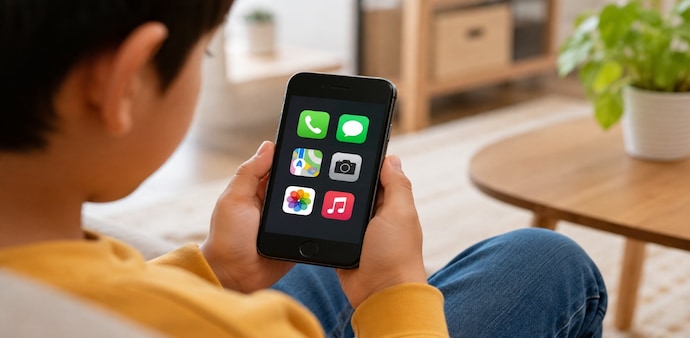
Maps can remain available for navigation while browsers stay blocked. In a test, an old iPhone 13 was configured with six apps - Calls, Messages, Maps, Camera, Photos and Music.
Must Read: Out of Google Photos storage? Simple ways to free space without losing your memories
You can also add or remove apps later as your child's needs change.
Passcode adds another layer
Assistive Access uses a separate four-digit passcode. Exiting it requires a triple-click of the side button on Face ID iPhones or the Home button on Touch ID models.
The setup can retain useful features such as FaceTime, Maps and Find My tracking.
There are some drawbacks
Assistive Access can feel sluggish and does not recognise Screen Time limits. You also need to exit the mode before shutting down the iPhone.
Messages could freeze after repeated emoji searches, although exiting and re-entering Assistive Access fixed the problem.
Apple's redesigned Screen Time in iOS 27 is also expected to let parents remove Safari from a child's profile, bringing tighter browser controls to standard parental settings.
For Unparalleled coverage of India's Businesses and Economy – Subscribe to Business Today Magazine
Giving a child their first phone can be a difficult balance. You may want them to call you, send messages and use maps when they are out alone, but unrestricted access to the internet and social media can be a concern.
Buying a traditional dumb phone solves part of that problem, but it can also remove useful features such as navigation and location tracking. There is, however, a way to repurpose an old iPhone without paying for another app or buying a new device.
Assistive Access can simplify an iPhone
The feature is called Assistive Access, introduced with iOS 17 for people with cognitive disabilities. It creates a simpler interface with large app tiles and fewer options.
Must Read: Slow internet at home? 5 ways to boost your Wi-Fi speed and connection
To set it up, go to Settings > Accessibility > Assistive Access. You can choose a grid or row layout and select only the apps you want your child to use.
You can leave Safari, Chrome and other browsers out. If your child receives a web link through Messages, it remains plain text rather than opening a browser, giving you tighter control over internet access.
Choose what your child can use
Assistive Access lets you customise Calls and Messages, including whether your child can contact everyone, contacts or selected favourites. You can also control the keypad, speaker and notifications, while Music can be limited to approved playlists.
Maps can remain available for navigation while browsers stay blocked. In a test, an old iPhone 13 was configured with six apps - Calls, Messages, Maps, Camera, Photos and Music.
Must Read: Out of Google Photos storage? Simple ways to free space without losing your memories
You can also add or remove apps later as your child's needs change.
Passcode adds another layer
Assistive Access uses a separate four-digit passcode. Exiting it requires a triple-click of the side button on Face ID iPhones or the Home button on Touch ID models.
The setup can retain useful features such as FaceTime, Maps and Find My tracking.
There are some drawbacks
Assistive Access can feel sluggish and does not recognise Screen Time limits. You also need to exit the mode before shutting down the iPhone.
Messages could freeze after repeated emoji searches, although exiting and re-entering Assistive Access fixed the problem.
Apple's redesigned Screen Time in iOS 27 is also expected to let parents remove Safari from a child's profile, bringing tighter browser controls to standard parental settings.
For Unparalleled coverage of India's Businesses and Economy – Subscribe to Business Today Magazine