
iPhone privacy screen hack: Skip privacy glass and use Back Tap and White Point settings instead
A simple iPhone accessibility setting can make your screen less glaring to people nearby, while a quick Back Tap shortcut lets you switch the feature on or off instantly.
- Aug 28, 2026,
- Updated Aug 28, 2026 9:00 AM IST
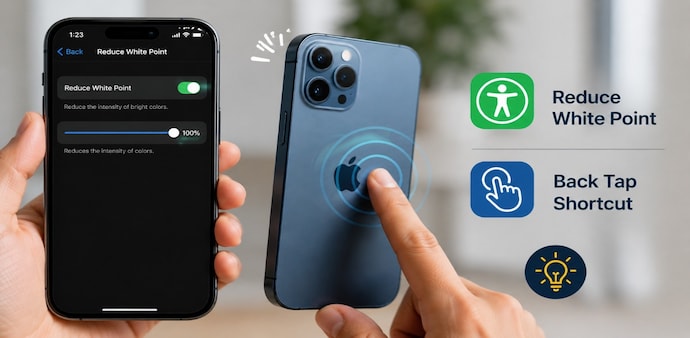
If you want a quick way to make your iPhone screen less visible to people around you, you can use the Reduce White Point and Back Tap features. Once set up, you can activate the effect simply by double-tapping the back of your iPhone.
Must Read: This one small router change could make your Wi-Fi faster and more reliable
Here’s how to set it up step by step.
Step 1: Open Accessibility settings
Open the Settings app on your iPhone.
- Tap Accessibility.
- Select Display & Text Size.
- Scroll all the way down until you find Reduce White Point.
Step 2: Turn on Reduce White Point
Tap Reduce White Point to enable it.
Move the slider all the way to 100%. This significantly reduces the intensity of bright colours and white areas on your screen.
Once you have set it to 100%, turn Reduce White Point off again.
Must Read: Why your keyboard has tiny bumps on F and J keys and how they help you type faster
This step prepares the setting so you can control it quickly through a Shortcut.
Step 3: Create a White Point shortcut
Now open the Shortcuts app.
- Tap the + icon in the top-right corner.
- Tap Search.
- Type Set White Point.
- Select Set White Point from the results.
- At the top, you will see the option to Turn White Point On.
- Tap Turn and change it to Toggle.
Your shortcut is now ready.
Step 4: Set up Back Tap
Go back to Settings.
- Tap Accessibility.
- Select Touch.
- Scroll down and tap Back Tap.
- Select Double Tap.
You will now see a list of available actions. Scroll down until you find Set White Point and select it.
Step 5: Use your iPhone privacy screen
That's it. Your iPhone is now set up.
Whenever you want to reduce the brightness and intensity of the display for more privacy, simply double-tap the back of your iPhone.
The White Point setting will toggle on. Double-tap the back again when you want to switch it off.
This gives you a quick way to change the screen appearance without having to open Settings every time.
(Note: This is not a built-in hardware privacy screen. The White Point feature simply dims the display, making your screen harder to see clearly from side angles.)
For Unparalleled coverage of India's Businesses and Economy – Subscribe to Business Today Magazine
If you want a quick way to make your iPhone screen less visible to people around you, you can use the Reduce White Point and Back Tap features. Once set up, you can activate the effect simply by double-tapping the back of your iPhone.
Must Read: This one small router change could make your Wi-Fi faster and more reliable
Here’s how to set it up step by step.
Step 1: Open Accessibility settings
Open the Settings app on your iPhone.
- Tap Accessibility.
- Select Display & Text Size.
- Scroll all the way down until you find Reduce White Point.
Step 2: Turn on Reduce White Point
Tap Reduce White Point to enable it.
Move the slider all the way to 100%. This significantly reduces the intensity of bright colours and white areas on your screen.
Once you have set it to 100%, turn Reduce White Point off again.
Must Read: Why your keyboard has tiny bumps on F and J keys and how they help you type faster
This step prepares the setting so you can control it quickly through a Shortcut.
Step 3: Create a White Point shortcut
Now open the Shortcuts app.
- Tap the + icon in the top-right corner.
- Tap Search.
- Type Set White Point.
- Select Set White Point from the results.
- At the top, you will see the option to Turn White Point On.
- Tap Turn and change it to Toggle.
Your shortcut is now ready.
Step 4: Set up Back Tap
Go back to Settings.
- Tap Accessibility.
- Select Touch.
- Scroll down and tap Back Tap.
- Select Double Tap.
You will now see a list of available actions. Scroll down until you find Set White Point and select it.
Step 5: Use your iPhone privacy screen
That's it. Your iPhone is now set up.
Whenever you want to reduce the brightness and intensity of the display for more privacy, simply double-tap the back of your iPhone.
The White Point setting will toggle on. Double-tap the back again when you want to switch it off.
This gives you a quick way to change the screen appearance without having to open Settings every time.
(Note: This is not a built-in hardware privacy screen. The White Point feature simply dims the display, making your screen harder to see clearly from side angles.)
For Unparalleled coverage of India's Businesses and Economy – Subscribe to Business Today Magazine