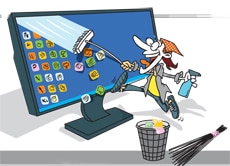
Micro-apps are tiny, single-minded, single-purpose applications that you can access easily-nay, at a mere click-from any screen, without wading through menus or burrowing into folders.
These can help you organise your desktop, pull up your Google Calendar at a click or enhance your clipboard's limited memory capabilities to remember everything you Ctrl-C or Ctrl-X. Once installed, you will find them residing cosily in the Windows system tray or the Mac OS X menu bar.
Here's a look at some of the best free micro-apps around.
WINDOWSCLIPCUBE
http://clipcube.wikispaces.com/
When working on a project that needs a lot of inputs from the Internet and other applications, copying and pasting from browser windows, try this cute little ute. ClipCube is a clipboard history micro-app that squats silently in your system tray and stores whatever you Ctrl-C from multiple sources. You can then access this clipboard history and pick out what you want at random and paste it wherever you want. Quite conveniently, clicking on a copied URL will launch the webpage in your browser. You can clean out the contents of ClipCube whenever you want or set it up to purge itself after a specific period. And no need installation. You simply run it.
TRAYDISKFREE
http://traydiskfree.sourceforge.net/
If you are living with a hard drive that is nearly crammed full with data and need to dive down to monitor the remaining free space, install TrayDiskFree. This diminutive executable pops an icon into your system tray that numerically displays the amount of free real estate remaining on any drive of your choice. While we agree that ascertaining remaining space is only a matter of a few mouse clicks, why waste precious seconds and break away from your task at hand when you can easily have the info available at a glance in the systray bar? TrayDiskFree is a single-purpose applet that runs on all flavours of the Windows family.
GMINDER
http://reflectivecode.com/gminder
An essential installation for those of you who depend excessively on Google Calendar to chart out your upcoming agenda, GMinder is a ready reckoner to your multiple Google Calendars and alerts you about upcoming appoints. So you don't have to wend your way through your Gmail/Google account each time to look up what the day holds for you. Best of all, this little beauty also works offline. Of course, you would have sign in with your Google account to have it download your updated calendar info to your system tray. GMinder is a free open source utility and runs on all versions of the ubiquitous OS from the House of Redmond.
FENCES
http://is.gd/51zIe
Does your PC's desktop look as if someone has emptied out a municipal garbage bin there? A random litter of icons make it difficult for you to spot most files and apps even when they are staring at you. A micro-app like Fences allows you to organise your desktop residents into individual sections or 'containers' so that you can find what you need more easily on the desktop. You can label these containers and also park associated programs, files, or web links, etc, together. You could group items by projects if you wanted to. You can create an unlimited number of "fenced" areas on the screen and customise their colour and opacity. This nifty free program also has a quick hide feature that fades out all desktop icons on double-clicking.
MAC OS XQUIETREAD
http://bambooapps.com/free-stuff/
Instead of being tucked into the right corner of the sys tray, you'll find Mac OS microapps more visible and accessible in the menu bar. QuietRead squats there waiting for you to drop the URL of a site you want to check out later.Yeah, bookmarking can do the same thing but not everything in this universe needs to be bookmarked for a lifetime. QuietRead is ideal for a less permanent no-time-will-read-it-later kind of bookmarking. If you can, opt for the paid version. It includes syncing your web reading to programs/sites Read It Later and Instapaper, link shortening, global short cuts, multiple link selections and even exporting to a CSV file.
CLOUDAPP
http://getcloudapp.com/
Cloud computing is set to rule. The gigs of data (documents, images, music, etc.) we are constantly (and increasingly) storing online for safe keeping is proof of this. CloudApp is a very uncomplicated method to get your files up there. Install the app, choose a file, drag it to the menubar and CloudApp does the rest. A short link is automatically copied to your clipboard that you can use when sharing your upload with someone. Else, you can view, track and delete files right from your menubar. CloudApp provides the online storage for you and you can also access your CloudApp storage via the Cloudette iPhone/iPod app. Windows-walas looking for an equivalent to CloudApp should check out Fluffy App (http://fluffyapp.com)
CLIPBOARD HISTORY
http://www.agileroute.com/clipboardhistory/
This is the Mac equivalent of the Windows ClipCube. What it does is it stores all your clipboard history-that is, whatever you copy or Cmd-C. In addition, it disallows duplicates items, allows you to block or unblock programs from inserting items onto your clipboard, and also lets you earmark frequently used items as favourites and brings them in a popup with a hotkey. You may just want to do that as the applet allows you to hoard as many at 500 snips if you want. And hey, these items can range from text to graphics to a rich-text mix of both as in PDFs or HTML.
CAPTUR
http://is.gd/zayR1M
An excellent micro-ute for Mac users, Captur makes it very easy to take screenshots. Yes, the default Cmd-Shift-3 is easy too, and you are probably quite used to it. But with Captur you capture the whole full screen. With Captur installed, you can hit Cmd-Shift-4 and the crosshairs that pop up allows you to snag any section of the screen you want. If you don't want to bother with the hot-key combo, just get going via the menu bar. By default, the file format is JPG but you can opt to save your clips in PNG, TIFF, GIF or BMP formats too. All files are time-stamped and saved in the folder you want. Like we already said, it's all so easy-peasy.